

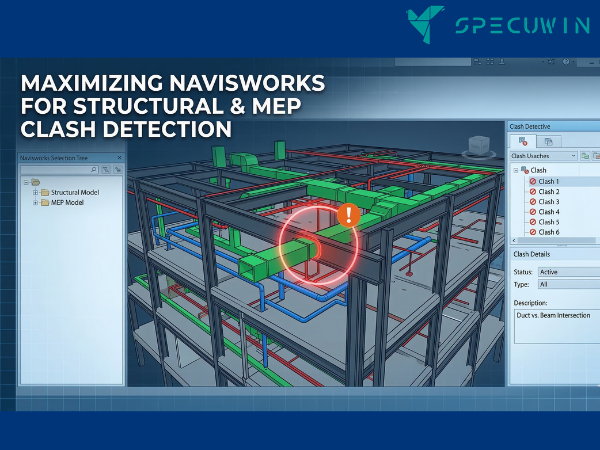
In the high-stakes world of modern construction, the gap between a flawless blueprint and a successful build is often bridged by how well we manage invisible conflicts. Traditionally, discovering that a structural beam intersects a massive HVAC duct happened on-site an “expensive surprise” that led to rework, wasted materials, and blown schedules. Today, using Navisworks for Structural and MEP coordination allows us to resolve these conflicts in a digital environment, long before the first shovel hits the dirt.
By centralizing data from various disciplines, Navisworks acts as the “referee” of the BIM process. It doesn’t just show you the building; it interrogates the model to find every physical inconsistency. In this guide, we will explore how to maximize this powerful tool to ensure your project moves from the screen to the site without the friction of manual errors.
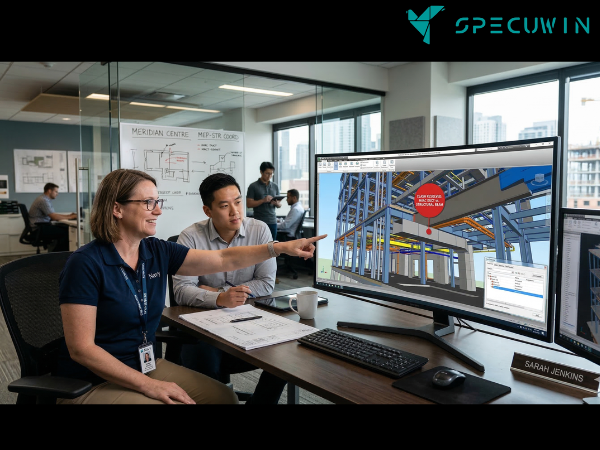
The Critical Role of Navisworks for Structural Integrity:-
Structural elements are the backbone of any project. Unlike interior finishes or even some electrical conduits, structural components like columns, load-bearing walls, and trusses are rigid and unforgiving. When an MEP (Mechanical, Electrical, and Plumbing) system clashes with a structural member, the MEP system almost always has to move, which can lead to inefficient routing and increased costs.
Using Navisworks for Structural coordination provides a “Federated Model” approach. This means bringing together the architectural, structural, and MEP models into one lightweight file. This integration allows engineers to see the building as a holistic system rather than isolated parts.
Setting Up Your Workflow: Navisworks for Structural Coordination:-
To get the most out of your coordination, you cannot simply hit “Run Test.” A strategic setup is required to filter out the noise and focus on critical issues.
1. File Preparation and Export:
Before importing data into Navisworks, ensure that the original Revit or Tekla files are cleaned up.
- Use NWC Files: Export your models to .NWC (Navisworks Cache) format. These files are lightweight and retain all the necessary metadata for clash detection.
- Coordinate Systems: Ensure all disciplines are using the same shared coordinate system. If the structural model is 3 feet off from the MEP model, every single element will show up as a “clash,” rendering the test useless.
2. Organizing Selection Sets:
Navisworks allows you to create “Selection Sets” based on properties. For Navisworks for Structural workflows, you should create sets for:
- Primary Structural Members (Columns/Beams)
- Secondary Structures (Bracing/Stairs)
- MEP Mains (Large diameter pipes and ducts)
- MEP Branches (Smaller conduits)
By testing “Mains vs. Primary Structure” first, you resolve the most expensive problems before worrying about minor pipe clearances.
Advanced Clash Detection: Resolving Conflicts Digitally:-
The heart of Navisworks is the Clash Detective tool. This is where the magic of “resolving conflicts before they become site issues” actually happens.
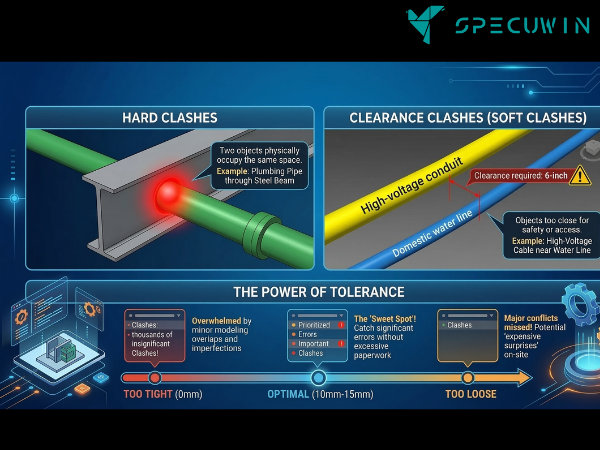
Hard Clashes vs. Clearance Clashes:
- Hard Clash: Two objects are physically occupying the same space. An example is a plumbing pipe passing directly through a steel beam.
- Clearance (Soft) Clash: Objects are not touching, but they are too close for comfort. For instance, a high-voltage cable might need a 6-inch clearance from water lines for safety and maintenance access.
The Power of Tolerance:
Setting the right tolerance is vital. If your tolerance is too tight (e.g., 0mm), you will be overwhelmed by thousands of insignificant “clashes” caused by minor modeling overlaps. For Navisworks for Structural and MEP tests, a tolerance of 10mm to 15mm is often the “sweet spot” to catch significant errors without creating unnecessary paperwork.
Why Resolving Conflicts Digitally Saves Your Budget:-
The cost of a clash follows an exponential curve.
- Design Phase: A clash costs $10 (the time it takes a modeler to move a line).
- Pre-Construction: A clash costs $100 (updating drawings and submittals).
- On-Site: A clash costs $1,000 to $10,000+ (demolition, material waste, and labor idle time).
By leveraging Navisworks for Structural and MEP coordination, you are effectively “building” the project twice—once digitally to fail fast and cheaply, and once physically to succeed. This transparency also fosters better relationships between contractors and engineers.
For more on why this synergy is vital, see how Collaboration between contractors and structural engineers is key to successful projects.
Integrating Navisworks for Structural Excellence into the BIM Lifecycle:-
Navisworks is not just a one-time check; it is a continuous process. As the design evolves, the Navisworks model should be updated weekly.
Timeliner and 4D Simulation:
Beyond just looking at physical space, Navisworks allows for 4D simulation. You can link your construction schedule (MS Project or Primavera) to the model. This helps identify “Schedule Clashes” for example, showing that the MEP team is scheduled to install ductwork before the structural steel they need to hang it from has even been erected.
Switchback Functionality:
One of the best features of Navisworks for Structural coordination is the “Switchback” tool. When you find a clash in Navisworks, you can click a button to be taken directly to that exact element in the original Revit or AutoCAD file. This closes the loop between finding a problem and fixing it.
Strategies for Efficient MEP and Structural Synergy:-
To maximize your results, follow these industry best practices:
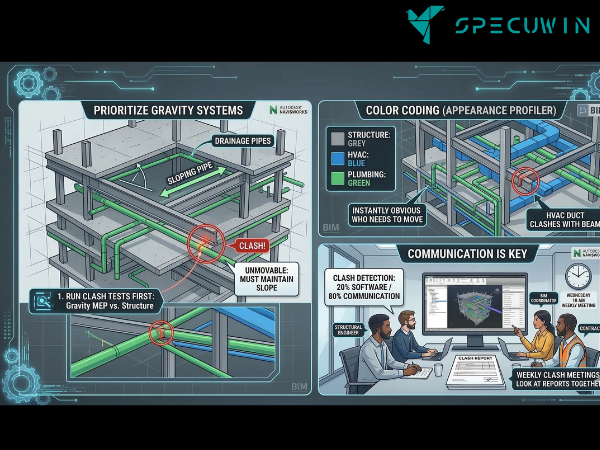
- Prioritize Gravity Systems: Since pipes for drainage must maintain a specific slope, they are the hardest to move. Always run your clash tests for “Gravity MEP vs. Structure” first.
- Color Coding: Use the Navisworks Appearance Profiler to color-code the model. Make structural elements “Grey,” HVAC “Blue,” and Plumbing “Green.” This makes it instantly obvious who needs to move when a clash appears.
- Communication is Key: Clash detection is 20% software and 80% communication. Weekly “Clash Meetings” where stakeholders look at the Navisworks for Structural reports together are essential.
If you are just starting your journey into these digital tools, it is helpful to understand the broader context of What is the role of a structural engineer in these tech-driven environments.
Conclusion:-
Maximizing Navisworks for Structural and MEP clash detection isn’t just about using fancy software; it’s about a commitment to project quality and financial responsibility. By identifying and resolving conflicts in the virtual world, we eliminate the stress, waste, and danger of “figuring it out on site.” As the AEC industry continues to evolve, those who master these digital coordination techniques will be the ones delivering projects on time, under budget, and with superior structural integrity.
Whether you are dealing with Top 10 structural issues in residential buildings or complex industrial facilities, Navisworks is your best defense against the unexpected.
FAQ’s:-
1. Can Navisworks fix the clashes automatically?
A. No. Navisworks identifies where the clashes are and provides data on them, but a human designer or engineer must decide the best way to resolve the conflict in the original authoring software (like Revit).
2. What is the difference between Navisworks Manage and Navisworks Simulate?
A. Navisworks Manage includes the Clash Detective tool, which is essential for identifying interferences. Navisworks Simulate includes almost everything else (like 4D scheduling) but lacks the automated clash detection features.
3. Does using Navisworks for Structural coordination replace structural analysis?
A. No. Navisworks is for spatial coordination. You still need dedicated software for load calculations. To understand the difference, you can read about the role of technology in structural analysis and design.
4. How long does a typical clash detection cycle take?
A. For a mid-sized project, a weekly cycle is standard. This includes 2 days for model updates, 1 day for running clash tests, and 1 day for a coordination meeting.
5. Is Navisworks useful for older building renovations?
A. Absolutely. By using “Scan to BIM” (Point Cloud data), you can bring a 3D scan of an old building into Navisworks to see where new MEP systems might hit existing structural walls. This is common when addressing common structural problems in old houses.
Read More On:-
For more information about engineering, architecture, and the building & construction sector, go through the posts related to the same topic on the Specuwin Blog Page.
Find out more accurately what we are going to take off in the course of applying leading new technologies and urban design at Specuwin.